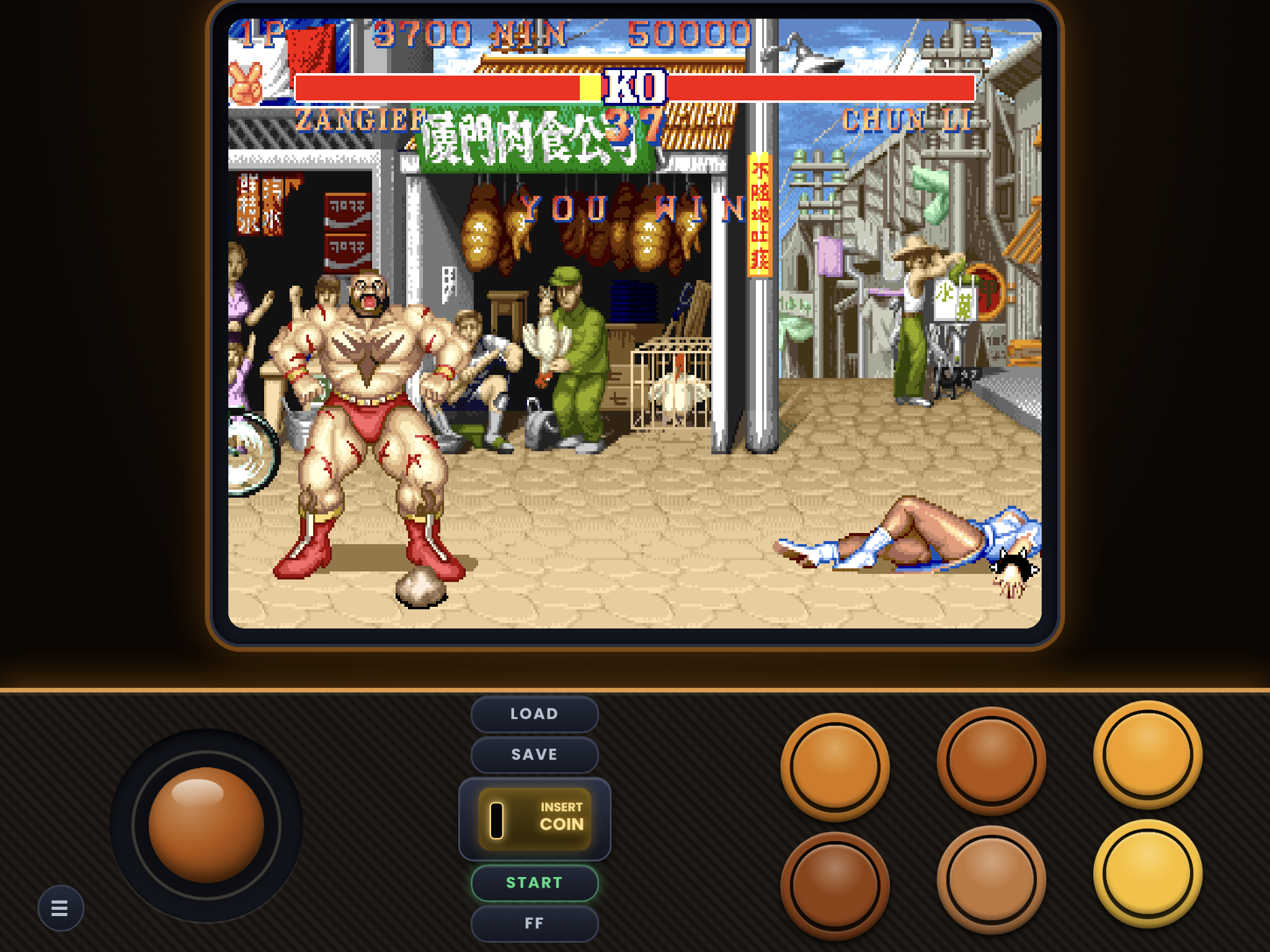
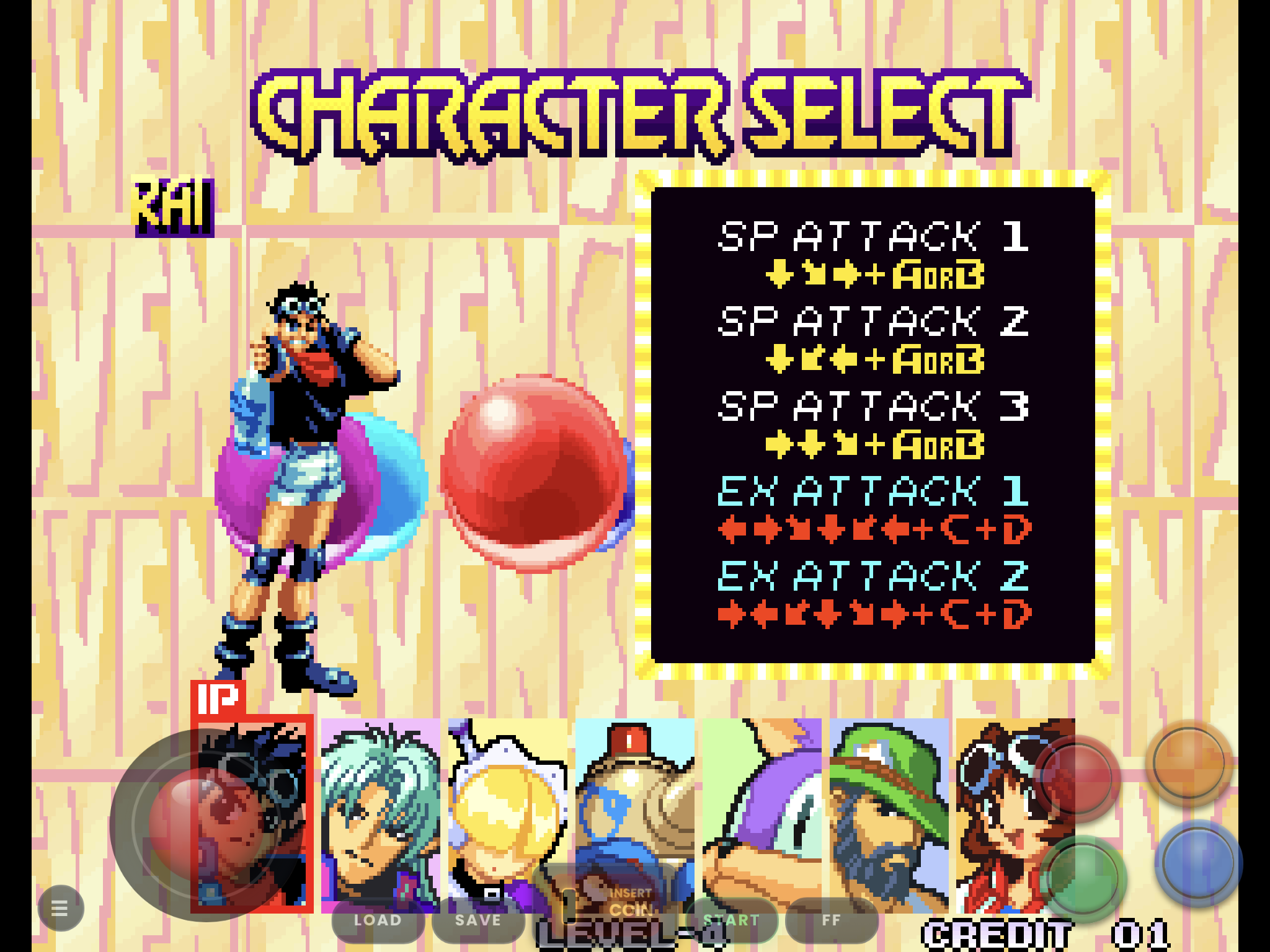
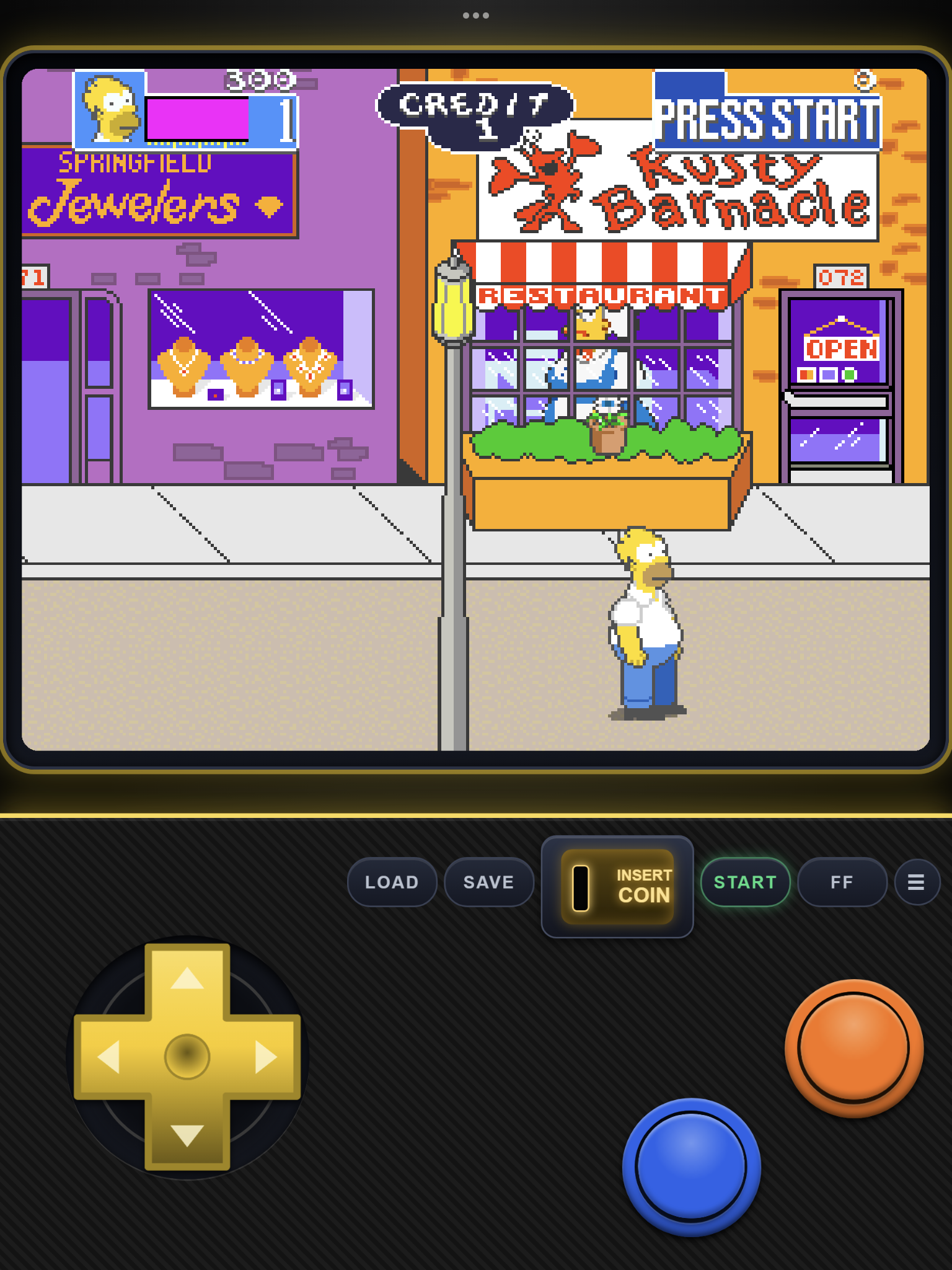
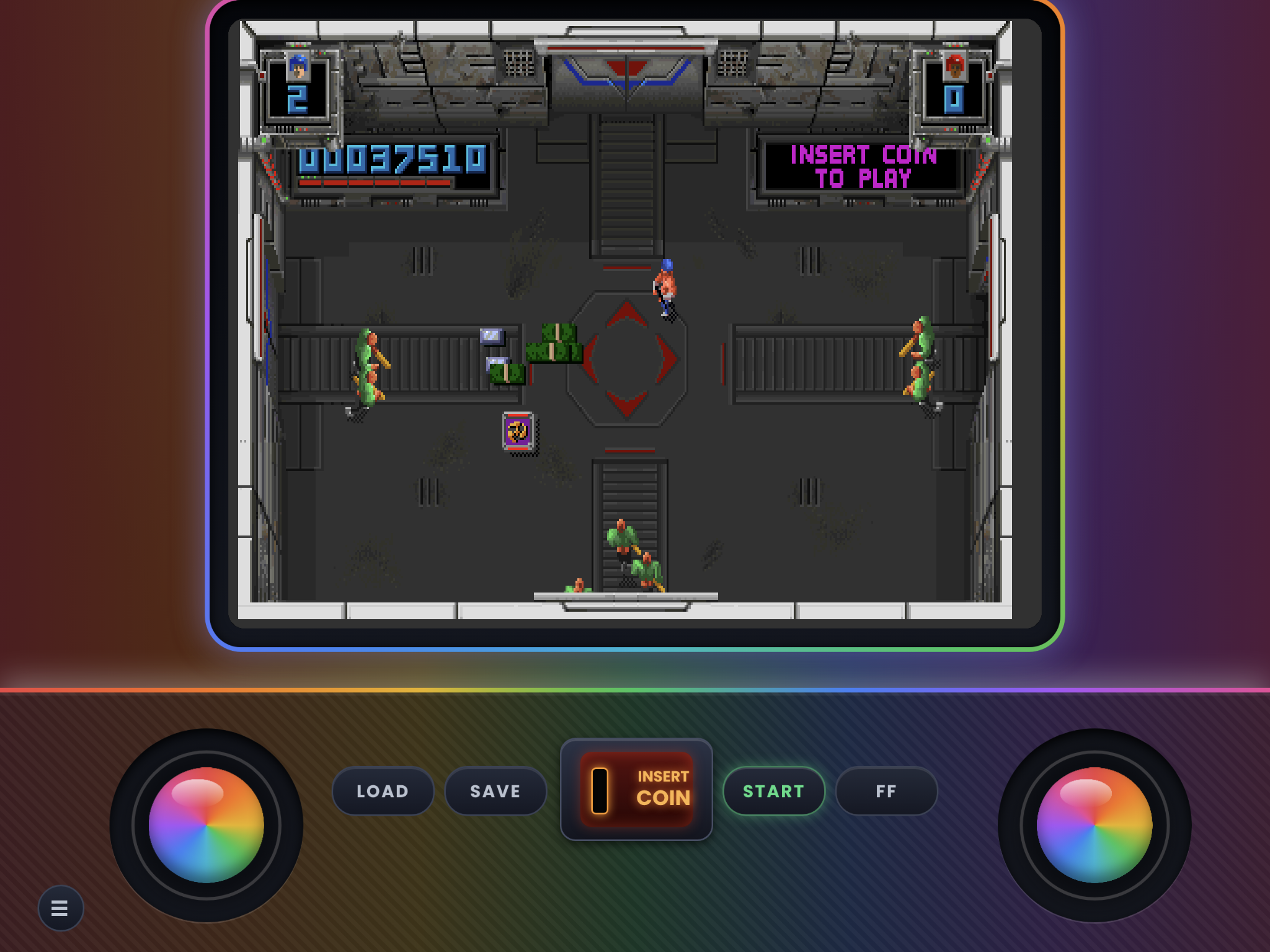
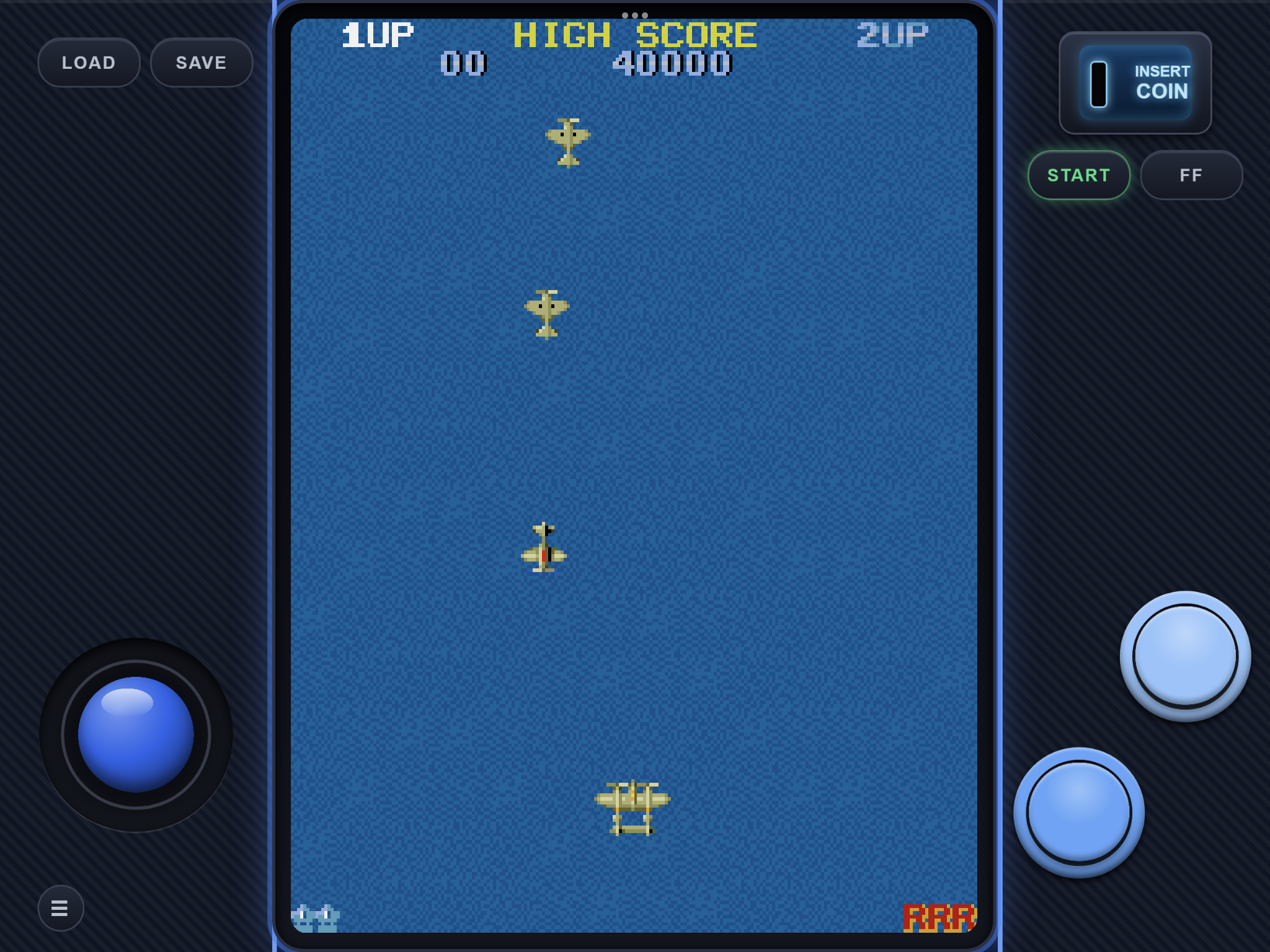
New Release: D-Pad is now out for Full Screen, Handheld, and Tabletop. Only the Starter-Packs are out on here for now, but they have every button in them that you need—they are just bundled in a way for 1-tap installs. If you want the full colorway, they are in the v1.8 release: https://github.com/TheMameKing/manic-emu-arcade-skins/releases/tag/v1.8
You may notice the shift in the "Pills" this was needed to give the D-Pad some room around it for overshooting and not hitting the load and save, and menu in portrait. The joy-stick doesn't have the same problem since it "Locks" onto the finger while its being held, and can't cause accidental clicks
I'll upload the full set here once I figure out how I want to bundle them for easy download and remove the need to unzip them, so they are less of a hassle while still staying organized inside. Starter-Packs don't need unzipping in the Files app—just make sure they are marked in the Zip File Handling screen in Manic before hitting confirm. The Github README has step-by-step install instructions and photos to follow along, plus how to delete them if installed wrong.
For iPad only. iPhone will not load iPad skins, and iPad will squeeze the iPhone skins with big black bars.
What's included
- Full Screen: the game fills the whole iPad screen in landscape, with see-through controls on top. Same button layout as Handheld. Portrait is the same as Handheld.
- Handheld: smaller buttons, closer together and in the bottom-right corner, for holding the iPad.
- Tabletop: bigger buttons with wider spacing, for when the iPad is lying flat.
- Tate: 3:4 display for vertical games like pac-man or 1942
- Layouts: 1, 2, 3, 4, 5 and 6-button and Twin Stick. Twin Stick has no handheld or Tabletop version (they are called Ipad-twin-stick.zip and ipad-full-screen-twin-stick.zip)
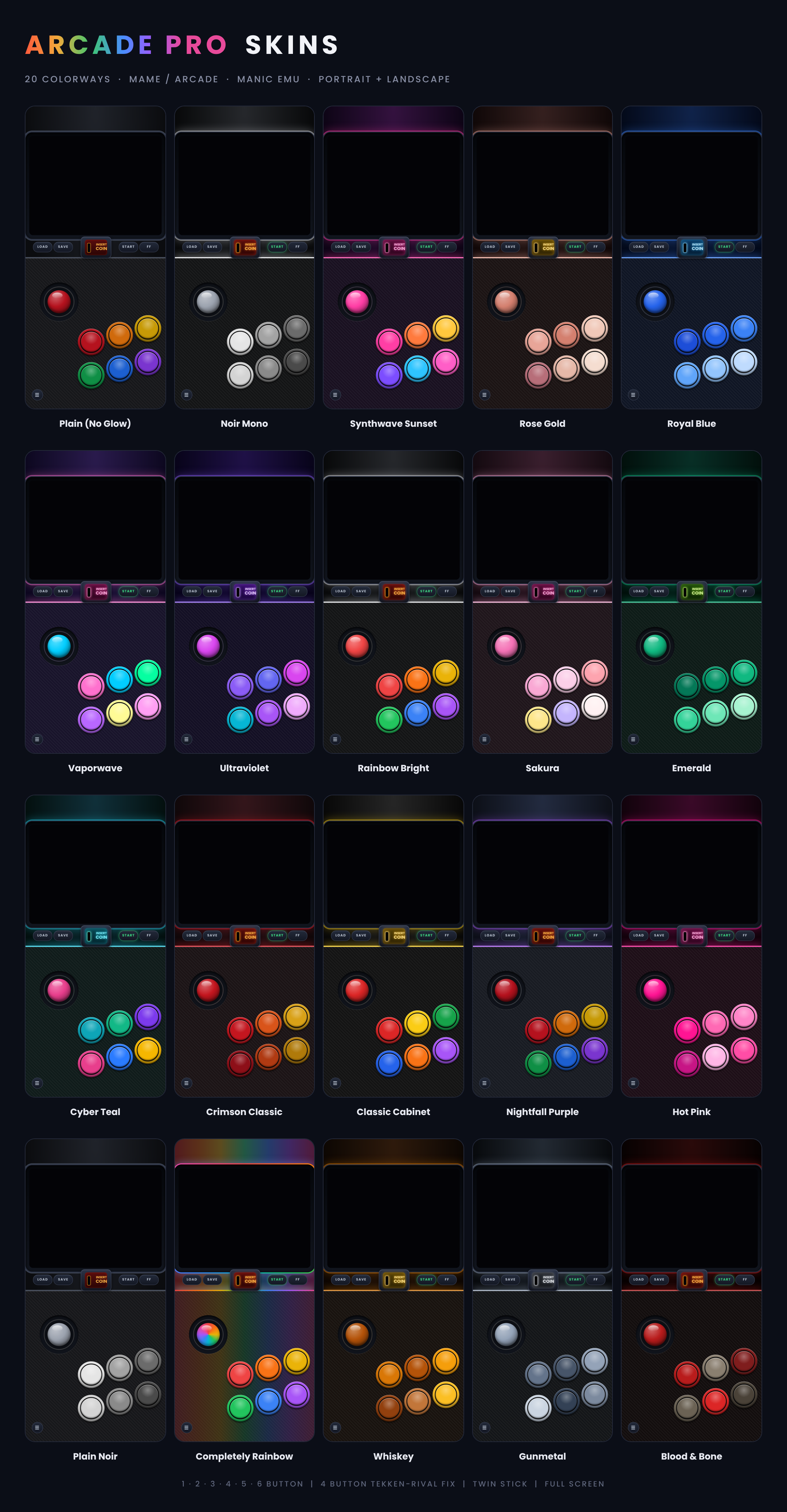
- Colorways: all 22, in portrait and landscape.
(Handheld and Tabletop are in 1-button.zip, 2-button.zip, 3-button.zip ect., Full screen is in its own zip.(Fullscreen.zip) all zips come with portrait and landscape)
All sets and Button numbers run 123 456 from left to right, top to bottom.
Not sure where to start? Grab one zip and get every layout of a set in the flagship color, Nightfall Purple or another color. (The ones labeled plain iPad starters hold all 3 layouts. HandHeld, Table-Top and Full-Screen in one color) *read zip handling part in yellow below for more info on how manic handles zips*
Each Starter Pack holds one skin for every layout in that set. They are exact copies of the skins from the full sets, so nothing changes if you later download a full set. They just save you from picking a color and a button count one zip at a time.
Format Key: SP = Starter Pack
Installing from DeltaStyles (Starter Packs):
- In Manic EMU’s DeltaStyles browser, tap the Starter Pack you want to download.
- When the ZIP File Handling page appears, select the zip and make sure it has the red checkmark before you Tap Confirm.
Installing zips
- Download the zips you want. Make sure they are either Starter Packs (non-nested) or you unzip the bundled zips in the files app and select 1 of the 3 part zips. Manic can’t import them bundled so make sure the zip isn't one of the bundled zips (1-button, 2-button, etc.) these zips have 3 zips zipped inside them, you can share the parts 1,2,3 of the zip once you unzip the main one holding the parts. Starter Packs don't need unzipping.
- In the Files app, press and hold the zip, tap Share, then choose Manic EMU.
- The ZIP File Handling screen appears. Tap the zip so the red check mark is on, then tap Confirm. The check mark is what unzips the skins. If you skip it, Manic imports the zip as a game instead of as skins.
- In Manic EMU, assign the skin to your arcade games.
There is a visual guide on my Github under the installing from Github section that can be used here as well if you need a visual walkthrough
Importing manicskin in Manic EMU: Manic EMU can be picky about importing zips while using the Assign skin route in the app. Manic EMU does not like importing zips in the in-app file handling pop-up screen. So if you go that route, unzip the file first so it's no longer zipped, after that it can be imported directly from the app by clicking the .manicskin, or you can follow the above steps to share it from the files app to Manic EMU. You can also click the .manicskin in the files app and it should automatically open Manic EMU and install the skin
When a zip is being imported to manic always select it in the zip handling screen in the app and hit confirm, it will import in the datas section if you do not, because Manic Emu thinks zips could be a game until you let it unzip it first so it can see its manicskins. If you do import it wrong and do not know where to find the zip it is in 2 spots you can delete it, 1 in the games list in the main menu and 2 in the datas folder in the files app under Manic EMU. There are photos on my Github showing the locations and a example under the Installing from Github since i cant post the photos in this section.
Note: The colorway preview image shows color options using the iPhone layout, not the iPad layout
*The Skins on here are all tested on a iPad mini 5th gen. They should fit the other iPads but since i do not have another one i can't confirm. Im going based of how manic scales the skins and the specs i read online. If it does not fit the way you like you have to let me know either through comment, message, or issue on my github because if you do not let me know i do not know that it needs adjusting.*
If your intrested in more info or photos check the Github Readme or disclaimer. If you want to download just 1 part of a zip i have them all split up in to single zips on Github.
Comments
Please log in to leave a comment.